Can you log a migraine with Siri?
Yes. Auralog 27, planned for release with iOS 27, adds App Shortcuts for starting migraine tracking, changing severity, adding treatments or notes, describing possible triggers, checking the current migraine, and showing progression. Once Auralog 27 is installed, activate Siri, say an Auralog shortcut phrase, and follow any spoken or onscreen prompt.
Apple explains that apps can offer frequent actions as shortcuts that you initiate with your voice. You can also find and combine app actions in the Shortcuts app. See Apple’s guide to using Siri with apps on iPhone for current device-level instructions.
Start a migraine log by voice
Activate Siri and use a phrase such as:
- “Start tracking a migraine in Auralog.”
- “Tell Auralog I have a migraine.”
- “Tell Auralog I have a severe migraine.”
Auralog captures the start so you can return to the full record later. If Siri asks for a severity or confirmation, answer naturally. Exact behavior can vary by device settings, language, and the information supplied in the request.
Update the migraine without opening a long form
Change severity
Try “Set migraine severity to moderate in Auralog.” A checkpoint keeps the change in sequence instead of replacing the entire history of the attack.
Add a treatment
Try “Add a migraine treatment in Auralog.” Follow the prompt to choose or describe the medicine or remedy you used.
Add a note
Try “Add notes to my migraine in Auralog.” Dictate the detail you want to remember, such as a symptom change, timing, or what you were doing.
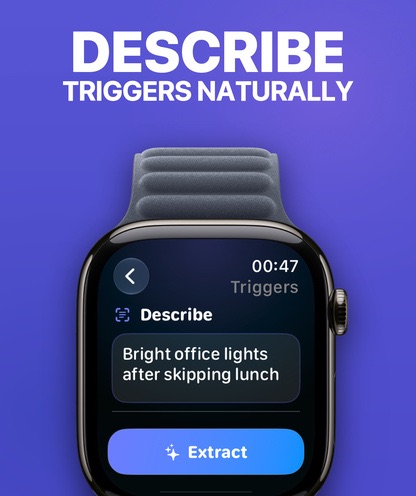
Describe a possible trigger
Try “Tell Auralog about a trigger.” Describe what happened in your own words. Auralog can identify and organize possible triggers from natural language; review the result rather than treating it as a confirmed cause.
Check progression
Try “Show my migraine progression in Auralog.” Auralog can return a visual summary of the sequence you recorded.
When released, Auralog 27 will use App Intents for start, update, query, and navigation actions. You will be able to build a personal shortcut, place an action in an automation, or use Siri directly. Rich visual results will help you confirm what was recorded when looking at the screen is comfortable.
Preview Auralog 27Make voice logging more reliable
- Include the app name “Auralog” in the request.
- Use the short, specific action first; add detail when Siri asks.
- Review the saved entry after the attack, especially names, medicines, and dictated text.
- Use Apple Watch when voice is not practical but a quick tap is.
- Keep typing available for private settings where speaking health details aloud is not appropriate.
Think about where you speak
A voice shortcut can be convenient, but it may make health information audible to people nearby. Choose the input method that fits your surroundings. Device and Siri privacy settings are controlled through Apple’s system settings; Auralog’s own permissions and integrations can be reviewed in the app.
Sources and further reading
Shortcut availability and phrasing may vary by language, device, operating-system version, and app version. Sources and the Auralog 27 workflow were checked August 9, 2026; see our editorial policy.